Full-stack developers live in the browser. Documentation, GitHub, Stack Overflow, API references, deployment dashboards, design specs — all browser-based. The typical dev installs 15 to 20 extensions, runs 30 tabs, and wonders why their machine sounds like a jet engine.
You do not need that. You need 4 extensions and 2 tabs. Everything else is noise.
The 4-Extension Stack
Here is the only setup you need:
- GoPeek — for previewing links without opening tabs
- uBlock Origin Lite — for blocking ads and trackers
- Bitwarden (or your password manager) — for logins
- One dev tool — pick one: React DevTools, Vue DevTools, or an API client extension
That is it. Remove everything else. Color pickers, page rulers, SEO analyzers, social media schedulers, grammar checkers, "productivity" dashboards — they are all bloat. If you use it less than once a day, it does not belong in your browser.
Why Most Dev Extensions Are Bloat
I audited my own extensions last month. I had 17 installed. Here is what I actually used daily:
- GoPeek — every 10 minutes
- uBlock Origin — constantly
- Bitwarden — 5 to 10 times a day
- React DevTools — during frontend work
The other 13 extensions were "just in case." A color picker I used twice in six months. A page ruler I opened once for a CSS bug. A JSON formatter I used before I learned the browser console does it natively. A screenshot tool I forgot I had.
Those 13 extensions were running processes in the background. They were injecting scripts into every page I visited. They were adding milliseconds to every page load. They were eating 400MB of RAM combined. For features I barely used.
I removed them. My browser became faster immediately. Page loads felt snappier. DevTools opened faster. The fan stopped spinning during normal browsing.
The 2-Tab Dev Setup
Tab 1 is your IDE or terminal. This is where you write code. It never changes during a session.
Tab 2 is your primary reference. This might be your local dev server, your main documentation page, or your project management board. It changes when your task changes, but not during a task.
Everything else is a preview. GitHub issues, Stack Overflow answers, API docs, design specs, deployment logs — all previews. You Shift-hover the link. The preview opens. You check what you need. You close it. No tab. No context switch. No RAM.
Example: Debugging a React Error
Old way: IDE in Tab 1. You hit an error. You open the React docs in a new tab. You open the GitHub issue tracker in a new tab. You open Stack Overflow in a new tab. You open the component library docs in a new tab. You now have 5 tabs. You switch between them. You lose your place in the IDE. You spend 20 minutes managing tabs instead of fixing the bug.
New way: IDE in Tab 1. Local dev server in Tab 2. You preview the React docs. You preview the GitHub issue. You preview the Stack Overflow answer. You sidebar the component library docs while you code. Total tabs: 2. Total previews: 3. Total time to fix: 8 minutes.
What Each Extension Does
GoPeek: The Core of the Stack
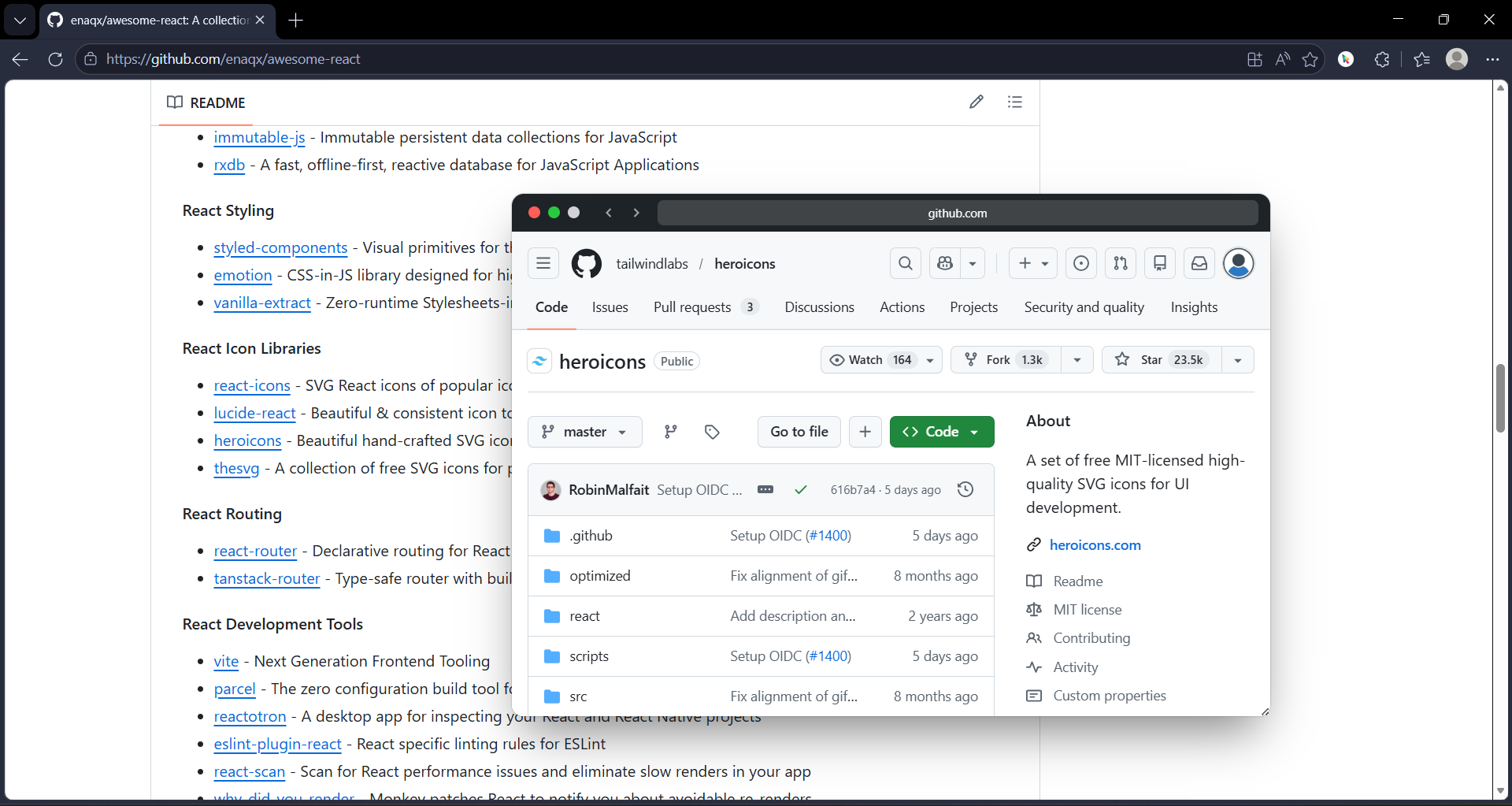
GoPeek replaces middle-clicking. When you see a link in documentation, a GitHub issue, a Stack Overflow answer, or a Slack message, you Shift-hover it. The preview opens instantly. You read the page. You close it. No tab.
For full-stack devs, this is essential because your workflow is link-dense. Every error message links to docs. Every PR links to commits. Every commit links to issues. Every issue links to related PRs. If you open all of them, you end up with 20 tabs for a single bug fix.
GoPeek also has sidebar mode for documentation you need to reference while coding. Drag the preview to the right side of your screen. The docs stay visible while you type. You copy error messages from the terminal, check the docs in the sidebar, and fix the code. No tab switching.
uBlock Origin Lite: The Ad Blocker
You need an ad blocker. Not for comfort — for speed. Ads and trackers add HTTP requests, JavaScript execution, and DOM manipulation to every page. On documentation sites, news sites, and even GitHub (yes, GitHub has tracking scripts), this slows things down.
Use uBlock Origin Lite, not the original uBlock Origin. Lite is Manifest V3 compliant, uses less memory, and is faster. It blocks ads and trackers without the bloat of heavier alternatives. It does not sell your data. It does not have an "acceptable ads" program.
Bitwarden: The Password Manager
You log into GitHub, Vercel, AWS, Stripe, Figma, Notion, and a dozen other services. You cannot remember 12 passwords. You should not reuse them. A password manager is non-negotiable.
Bitwarden is free, open-source, and lightweight. It autofills logins without injecting heavy scripts into every page. The browser extension uses minimal resources. The mobile app syncs instantly. If you are not using a password manager, fix that today.
One Dev Tool: Pick Your Weapon
You get one dev tool extension. Choose based on your stack:
- React DevTools — if you build with React or Next.js
- Vue DevTools — if you build with Vue or Nuxt
- Angular DevTools — if you are stuck with Angular
- Talend API Tester — if you test APIs frequently in the browser
- JSONVue — if you view raw JSON responses often (though the console handles this now)
Only install one. If you switch stacks, swap it. Do not keep React DevTools installed while you are working on a Vue project. It still runs in the background.
What to Remove
Here are the extensions most devs have installed but do not need:
- Color pickers — Use the browser DevTools color picker or Figma
- Page rulers — Use DevTools element inspector
- Grammar checkers — They analyze every text field and eat CPU
- SEO tools — You are not doing SEO while coding
- Social media extensions — They keep live connections and ping constantly
- "New tab" replacements — They replace a simple page with a heavy dashboard
- VPN extensions — Use a system VPN, not a browser extension that proxies everything
- Shopping assistants — They inject scripts into every page
- Multiple tab managers — If you need a tab manager, you have too many tabs
Remove them all. Check your RAM usage before and after. You will see a difference.
Head-to-Head: Overstacked vs Minimalist
| Metric | 17 Extensions, 25 Tabs | 4 Extensions, 2 Tabs |
|---|---|---|
| RAM usage | 4.8 GB | 1.2 GB |
| CPU at idle | 15-25% | 3-5% |
| Page load time | 2-4 seconds | 0.8-1.5 seconds |
| DevTools open time | 3-5 seconds | 1-2 seconds |
| Context switches per hour | 40-60 | 5-10 |
| Tab management time | 20-30 min/day | 2-3 min/day |
| Browser crashes per week | 1-2 | 0 |
The numbers are from my own machine. The overstacked setup is what I ran for two years. The minimalist setup is what I run now. The difference is not marginal. It is the difference between a sluggish machine and a fast one.
The Browser Choice
The browser matters less than the setup. Chrome, Edge, and Firefox all work fine for development. Safari is limited on non-Apple platforms. Arc is Mac-only and forces a workflow you might not want.
If you need Chrome DevTools, use Chrome or Edge. If you want better memory management, use Firefox. If your workplace requires Chrome, use Chrome. The 4-extension stack works on all of them.
The one setting to change: enable strict site isolation in Chrome or Edge. This improves security when testing locally hosted apps. In Firefox, enable Enhanced Tracking Protection on Strict mode. These are one-time changes that cost nothing.