Developers live in GitHub issues. A bug report links to a PR. The PR links to a commit. The commit links to documentation. The documentation links to related issues. Each of those issues links to more PRs, commits, and comments. Within 10 minutes, you have 15 tabs open and you have forgotten which issue you were originally debugging.
This is normal. It is also fixable. You do not need to open every link as a tab. You need to preview links before you commit to them. Here is how to read GitHub issues without opening 20 tabs.
The GitHub Issue Link Problem
A typical GitHub issue contains:
- Links to related issues and PRs in the description
- Links to commits that introduced or fixed the bug
- Links to documentation pages referenced by maintainers
- Links to external reproduction repos or CodePens
- Links to CI logs, build failures, or test outputs
- Links to release notes or changelogs in comments
A single issue with 20 comments can contain 30 to 50 links. Most of them are context. Only 2 or 3 are directly relevant to your problem. But you do not know which 2 or 3 until you check them. So you open everything. And now you have 20 tabs.
The Debugging Session: A Timeline
0:00 — You hit a bug. You search the repo issues. You find #847. Open it. 1 tab.
0:02 — The issue links to PR #912. You open it. 2 tabs.
0:04 — The PR links to 3 commits. You open the first one. 3 tabs.
0:06 — The commit message links to a docs page. You open it. 4 tabs.
0:08 — Comment #5 links to a related issue #734. You open it. 5 tabs.
0:10 — Issue #734 links to PR #801 and PR #805. You open both. 7 tabs.
0:13 — PR #805 links to a CI failure. You open the Actions log. 8 tabs.
0:15 — A maintainer in comment #12 links to a workaround in a different repo. You open it. 9 tabs.
0:18 — You try to go back to the original issue #847. You cannot find it in the tab bar. You have 9 tabs and you have lost the original bug.
Result: 18 minutes elapsed. 9 tabs open. You still do not know if the bug is fixed in the latest release.
Why Tabs Break GitHub Workflows
Tabs hurt GitHub workflows in three ways.
1. You Lose the Original Issue
GitHub issues are threaded conversations. You need to read them in order. When you open a link in a new tab, you leave the thread. When you come back, you have lost the context of the comment that contained the link. You scroll up and down trying to remember why you clicked it. This happens every time you open a link as a tab.
2. You Open Links That Are Not Relevant
Most links in GitHub issues are supporting context, not primary information. A maintainer might link to 5 related issues to show that the bug has been reported before. You only need to check one of them to confirm it is a duplicate. The other 4 are noise. But when you open everything as tabs, you treat every link as equally important. You waste time on noise.
3. Your IDE Loses Context
Most developers keep their IDE open alongside the browser. When you have 15 browser tabs, Alt-Tabbing between the browser and the IDE becomes a navigation problem. You cannot find the browser tab you need. You cannot find the IDE window you need. Your mental model of the bug splits across 15 browser tabs and 3 IDE panels. You spend more time managing windows than fixing the bug.
The Fix: Preview Before You Commit
The solution is to treat GitHub issue links as previews, not destinations. You check the link. You decide if it is relevant. If it is not, you close it and stay on the issue. If it is, you bookmark it or keep it in a temporary preview. You never open a tab unless you are actively working inside that page.
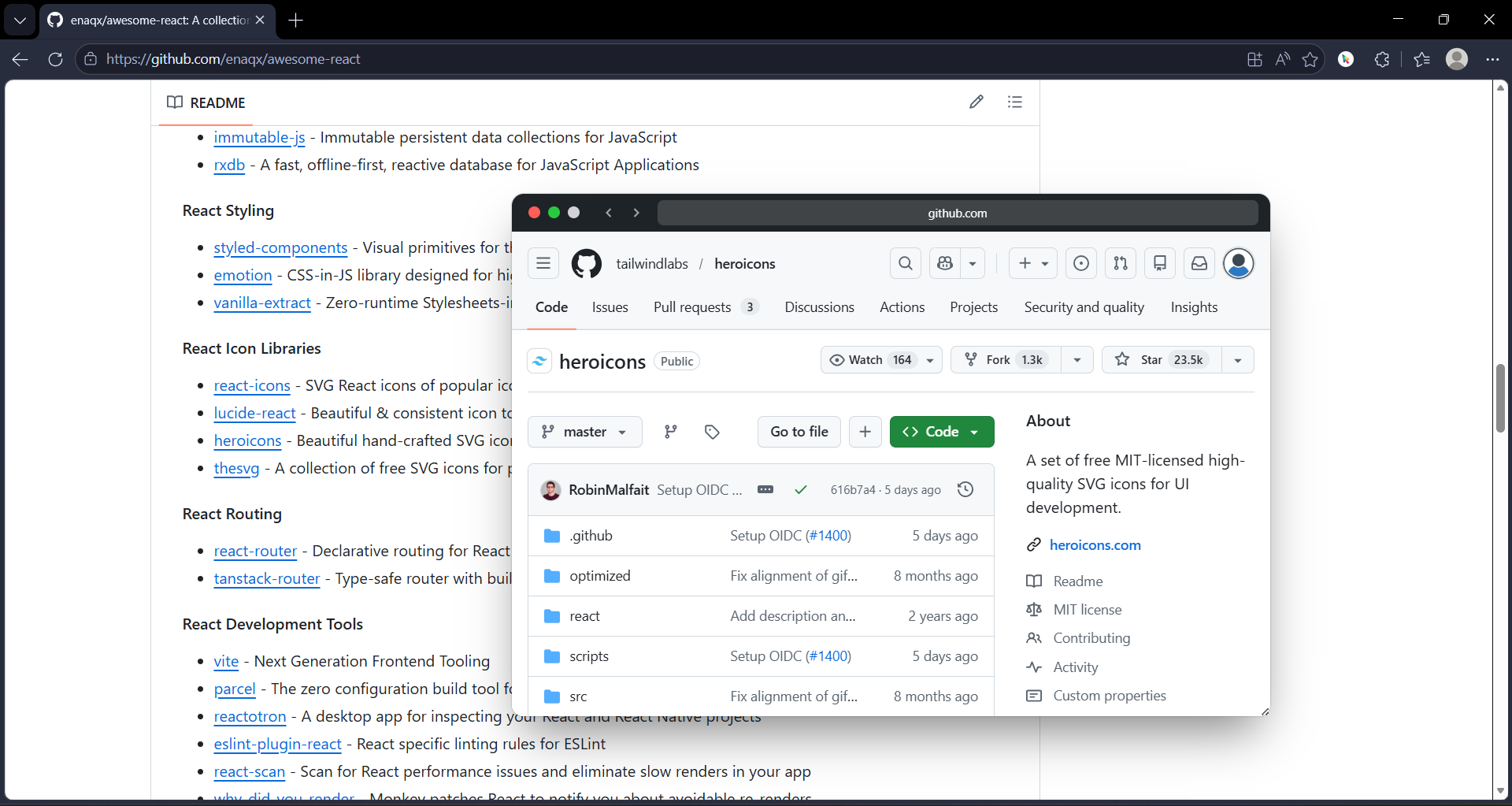
Here is the workflow with GoPeek.
Step 1: Preview Linked PRs and Issues
You are reading issue #847. It links to PR #912. You hold Shift and hover the link. A GoPeek preview opens. You see the PR description, the changed files, and the merge status. You decide in 10 seconds: relevant or not. If it is a fix that was merged 2 months ago, you note the version and close the preview. You never left issue #847. No tab created. No context lost.
Step 2: Preview Commits Without Leaving the Thread
The PR links to 3 commits. You Shift-hover each one. The preview shows the diff summary. You can see which files changed and how many lines were added or removed. For most debugging, that is enough. You do not need to read the full diff in a new tab. You just need to know if the commit touched the file you care about. Preview, check, close. Stay on the issue.
Step 3: Preview Documentation Links
A maintainer links to the docs in comment #8. You Shift-hover the link. The preview loads the docs page. You find the relevant section. You read it. You close the preview. You are still on comment #8 of the original issue. You can reply immediately with the correct information. No scrolling to find your place. No re-reading the thread.
Step 4: Use Sidebar Mode for Side-by-Side Comparison
Sometimes you need to compare two issues or two PRs simultaneously. Drag the GoPeek preview to the edge of your screen. It snaps into sidebar mode. The original issue stays on the left. The preview stays on the right. You can scroll both independently. You can copy error messages from the preview and paste them into your search. You can compare the reproduction steps in two issues without losing either one.
Step 5: Bubble-Minimize the Keepers
Occasionally you find a link you need to return to later in the session — a workaround repo, a specific commit hash, or a release note. You do not need to open a tab. You double-click the GoPeek header. It collapses into a floating bubble with the site favicon. It sits on your screen as a visual reminder. When you need it, click the bubble. It expands. You copy the information. You close it. No tab bar clutter.
The Same Debugging Session, With GoPeek
0:00 — You hit a bug. You search the repo issues. You find #847. Open it. 1 tab.
0:02 — The issue links to PR #912. You Shift-hover. Preview. It was merged in v2.4.1. You are on v2.3.0. Relevant. You bubble-minimize it. 1 tab.
0:04 — The PR links to 3 commits. You Shift-hover the first. Preview. It touched the file you care about. You note the commit hash. Close. You Shift-hover the other two. Neither is relevant. Close both. 1 tab.
0:07 — Comment #5 links to issue #734. You Shift-hover. Preview. It is a duplicate. Closed in v2.4.0. Not relevant to your version. Close. 1 tab.
0:09 — Comment #8 links to docs. You Shift-hover. Preview. You find the migration guide. You read the section on v2.3 to v2.4. Close. 1 tab.
0:12 — You click the bubble. PR #912 expands. You copy the commit hash. You check out the tag in your IDE. You verify the fix. You close the bubble.
Result: 12 minutes elapsed. 1 tab open. You know the bug is fixed in v2.4.1. You have the commit hash. You are ready to upgrade.
Head-to-Head: Tab-Based GitHub vs. Preview-Based GitHub
| Metric | Tab-Based GitHub | GoPeek GitHub |
|---|---|---|
| Tabs per issue | 5 to 15 | 1 |
| Time to find original issue | 30 to 60 seconds | 0 seconds — never left it |
| Context switches | 10 to 20 per session | 0 to 2 |
| Relevant links found | 2 to 3 out of 15 opened | 2 to 3 out of 15 previewed |
| RAM usage | 2 to 4GB | Under 500MB |
| IDE focus | Broken — lost in browser tabs | Intact — browser stays clean |
| End of session | Close 12 tabs, feel lost | Close 1 tab, done |
Specific GitHub Workflows That Benefit
This workflow helps in several common GitHub scenarios.
- Triaging issues. You review 10 issues in a row. Each has 3 to 5 links. Preview them all. Close the irrelevant ones. Label the issue. Move on. No tab bar growth.
- Reviewing PRs. The PR description links to 4 related issues and 2 docs pages. Preview each one to understand the context. Then review the diff. All context is available without leaving the PR page.
- Debugging regressions. A user reports a bug in the latest release. You need to find which commit introduced it. You follow the link chain from issue to PR to commit. Preview each step. Only open the final commit in a tab if you need to read the full diff.
- Onboarding to a new repo. You read the README. It links to 8 docs pages, 3 example repos, and 5 related projects. Preview them all. Bookmark the 2 you actually need. Close the rest. Your tab bar stays at 1.
- Checking release notes. A release links to 20 merged PRs. You want to know if your bug was fixed. Preview the PRs that mention your issue keywords. Skip the rest. No tab sprawl.
The Bottom Line
GitHub issues are link-dense by design. Every issue is a hub that connects to PRs, commits, docs, and other issues. That connectivity is useful. But treating every link as a tab turns a useful network into a navigation nightmare.
You do not need to stop clicking links. You need to stop opening them as tabs. Preview the PR to see if it is merged. Preview the commit to see if it touched your file. Preview the docs to find the relevant section. If the preview is enough, close it. If you need to work in it, bookmark it or keep it in a bubble. Only open a tab if you are actively editing, commenting, or coding inside that page.
Use GoPeek for the previews. Use one tab for the issue you are working on. Use your IDE for the code. That is the full stack. Anything beyond that is overhead.