Developers search Stack Overflow multiple times per day. Every answer contains links — to documentation, GitHub repos, related questions, blog posts, and tutorials. The accepted answer might have 3 links. The second answer has 2 more. The third answer links to a tutorial. The sidebar shows 5 related questions. Within one search, you can open 10 to 15 tabs without realizing it.
This is a problem. Stack Overflow is supposed to be a quick reference. You search, you find the answer, you go back to coding. But the link density turns every search into a research session. You open a link to check a doc reference. That doc links to another page. You open that too. Twenty minutes later, you have 12 tabs and you have forgotten the original error you were trying to fix.
Here is how to read Stack Overflow without opening 15 tabs.
The Stack Overflow Tab Trap
A typical Stack Overflow question page contains:
- The accepted answer, which often links to 2 to 4 documentation pages or source repos
- 3 to 5 alternate answers, each with their own links and code references
- A "Related" sidebar with 10 to 15 linked questions
- Comments on answers linking to updated docs, newer versions, or caveats
- Links to external tutorials, blog posts, or GitHub issues in the question body
That is 20 to 30 links on a single page. Most of them are helpful context. Only 2 or 3 are directly relevant to your specific problem. But you do not know which 2 or 3 until you check them. So you open everything. And now you have 15 tabs.
The Debugging Session: A Timeline
0:00 — You hit a React error. You search Stack Overflow. You find a question with 8 answers. 1 tab.
0:02 — The accepted answer links to the React docs. You open it. 2 tabs.
0:04 — The docs page links to a Hooks reference. You open it. 3 tabs.
0:06 — The second answer links to a GitHub issue. You open it. 4 tabs.
0:08 — The GitHub issue links to a PR. You open it. 5 tabs.
0:10 — The third answer links to a blog post about the error. You open it. 6 tabs.
0:12 — A comment on the accepted answer links to a newer doc page for v18. You open it. 7 tabs.
0:14 — The related sidebar shows a question about the same error in TypeScript. You open it. 8 tabs.
0:16 — That question has an answer linking to a TypeScript handbook page. You open it. 9 tabs.
0:18 — You try to go back to the original React question. You cannot find it. You have 9 tabs and you have forgotten the original error message.
Result: 18 minutes elapsed. 9 tabs open. You still have not fixed the bug.
Why Tabs Break the Stack Overflow Workflow
Tabs hurt Stack Overflow usage in three ways.
1. You Lose the Original Question
Stack Overflow answers are ranked. You need to compare the accepted answer with the second and third answers to find the best solution for your specific version or setup. When you open a link in a new tab, you leave the comparison page. When you come back, you have lost the mental comparison you were making. You re-read the answers from the top. This wastes time.
2. The Accepted Answer Is Often Outdated
The accepted answer on Stack Overflow is frequently 3 to 5 years old. The second or third answer might have the updated solution for the current version. But the accepted answer has the most links, the most votes, and the most visibility. You click its links first. You waste time on outdated documentation. Then you go back and realize the third answer was the right one all along. If you had previewed the accepted answer's links instead of opening them, you would have spotted the outdated version number in 10 seconds and moved on.
3. Related Questions Are a Trap
The sidebar shows related questions that are often more specific or more recent than the one you are on. You open them "just in case." Most of them are not relevant. But they sit in your tab bar, consuming RAM and attention. The related questions are designed to keep you on Stack Overflow longer. They are not designed to solve your problem faster.
The Fix: Preview Before You Commit
The solution is to check Stack Overflow links as previews, not tabs. You verify the link. You decide if it is relevant. If it is not, you close it and stay on the question. If it is, you bookmark it or keep it in a temporary preview. You only open a tab if you need to actively work inside that page.
Here is the workflow with GoPeek.
Step 1: Preview Documentation Links in Answers
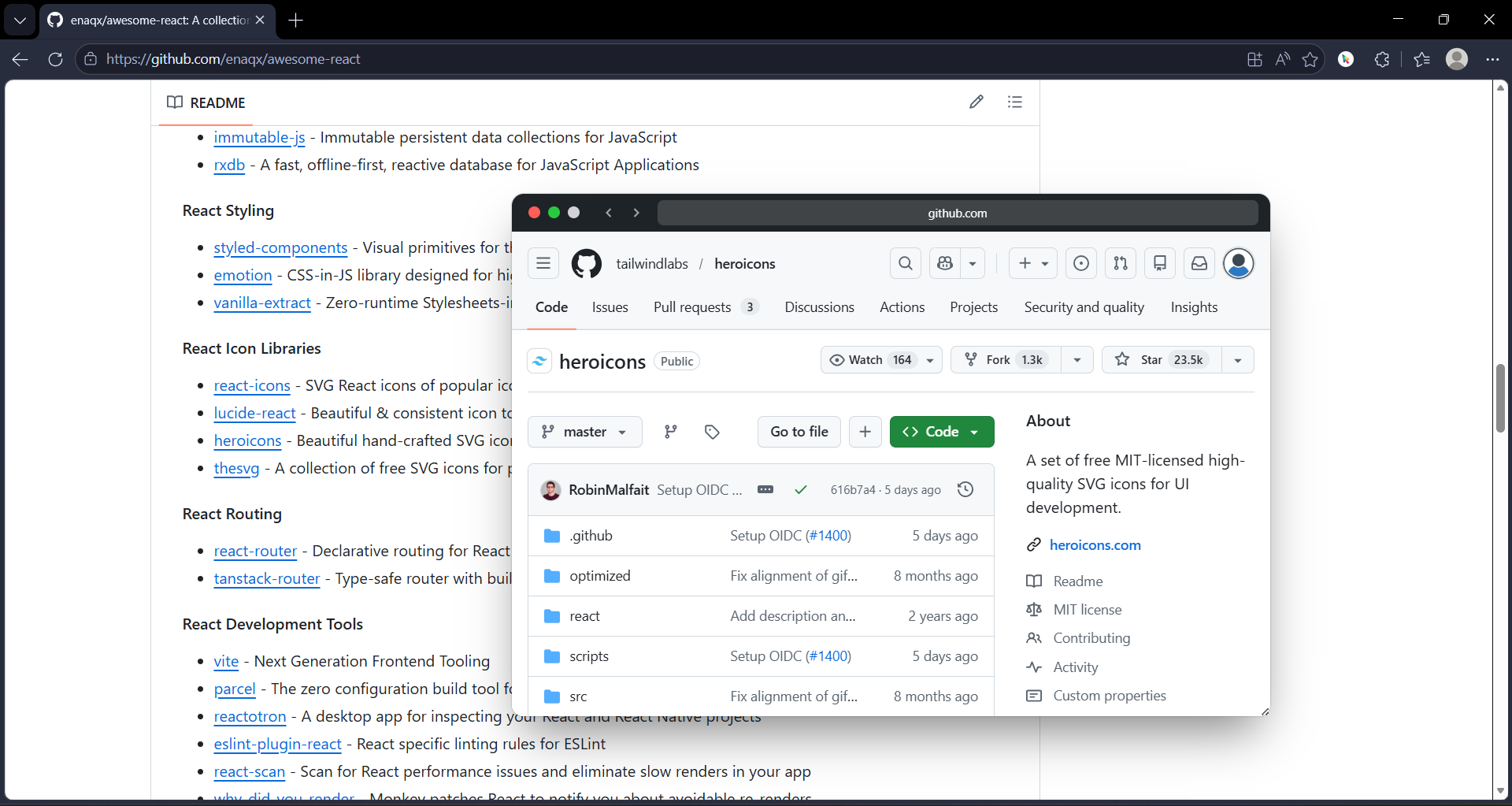
You are reading a Stack Overflow question. The accepted answer links to the React docs. You hold Shift and hover the link. A GoPeek preview opens. You see the doc page instantly. You check the version number in the URL. It says v16. You are on v18. Outdated. You close the preview. You never left the Stack Overflow page. You never opened a tab. You move to the second answer.
Step 2: Preview GitHub Repos and Issues
The second answer links to a GitHub repo with a workaround. You Shift-hover the link. The preview shows the repo README. You scan the install instructions. You check the last commit date. It was 2 years ago. Probably abandoned. You close the preview. No tab. You move to the third answer.
Step 3: Preview Blog Posts and Tutorials
The third answer links to a blog post. You Shift-hover. The preview loads the post. You read the first two paragraphs. It covers your exact error and the fix for v18. Relevant. You bubble-minimize the preview. It becomes a floating bubble on your screen. You continue reading the other answers on Stack Overflow. When you are ready to implement the fix, you click the bubble. The preview expands. You follow the instructions. You close it when done.
Step 4: Use Sidebar Mode for Comparing Answers
Sometimes you need to compare two answers side by side. One answer has the code snippet. Another has the explanation. Drag the GoPeek preview to the edge of your screen. It snaps into sidebar mode. The Stack Overflow question stays on the left. The preview stays on the right. You can scroll both independently. You can copy code from the preview and paste it into your IDE without losing the question context.
Step 5: Multi-Peek for Checking Multiple Related Questions
The sidebar shows 5 related questions. You are not sure which one is most relevant. You Shift-hover each one. GoPeek opens 3 previews side by side. You scan the titles and the top answers. You identify the most relevant one. You close the other two. You read the relevant one in the preview. You close it when done. You never opened a single tab for any of them.
The Same Debugging Session, With GoPeek
0:00 — You hit a React error. You search Stack Overflow. You find a question with 8 answers. 1 tab.
0:02 — The accepted answer links to the React docs. You Shift-hover. Preview. Version v16. Outdated. Close. 1 tab.
0:04 — The second answer links to a GitHub repo. You Shift-hover. Preview. Last commit 2 years ago. Abandoned. Close. 1 tab.
0:06 — The third answer links to a blog post. You Shift-hover. Preview. Covers v18. Relevant. You bubble-minimize it. 1 tab.
0:08 — A comment links to a newer doc page for v18. You Shift-hover. Preview. You confirm the API change. Close. 1 tab.
0:10 — The related sidebar shows a TypeScript version of the same question. You Shift-hover. Preview. Not relevant to your JavaScript setup. Close. 1 tab.
0:12 — You click the bubble. The blog post expands. You copy the fix. You paste it into your IDE. You test it. It works.
Result: 12 minutes elapsed. 1 tab open. 1 bubble closed. Bug fixed. You go back to coding.
Head-to-Head: Tab-Based Stack Overflow vs. Preview-Based Stack Overflow
| Metric | Tab-Based SO | GoPeek SO |
|---|---|---|
| Tabs per search | 5 to 15 | 1 |
| Time to find the right answer | 10 to 20 minutes | 2 to 5 minutes |
| Outdated docs checked | 3 to 5 (opened as tabs) | 3 to 5 (previewed and closed in 10 seconds each) |
| Context switches | 10 to 20 per search | 0 to 2 |
| RAM usage per search | 500MB to 2GB | Under 100MB |
| IDE focus | Broken — lost in browser tabs | Intact — browser stays clean |
| Related questions checked | 2 to 3 (opened as tabs, mostly irrelevant) | 5 to 10 (previewed, filtered quickly) |
| End of search | Close 8 tabs, feel cluttered | Close 1 tab, done |
Specific Stack Overflow Workflows That Benefit
This workflow helps in several common scenarios.
- Debugging errors. You search an error message. You find 3 questions about it. You preview the answers in each. You identify the fix for your version. You implement it. No tab sprawl.
- Learning a new API. You search "how to use X." You find a question with 5 answers linking to different docs and tutorials. You preview each one. You find the clearest explanation. You bookmark it. You close the rest.
- Comparing solutions. A question has 3 valid answers using different approaches. You preview the linked repos and docs for each. You compare the trade-offs in sidebar mode. You pick the best one for your use case.
- Checking version compatibility. The accepted answer is from 2019. You need to know if it still works in 2026. You preview the linked docs. You check the current version. You preview the related questions for newer solutions. You find the updated answer without opening a single outdated tab.
- Following tutorial chains. An answer links to a tutorial. The tutorial links to a repo. The repo links to a demo. You preview each one. You verify the demo works. You close the chain. You only keep the tutorial bubble if you need it later.
The Bottom Line
Stack Overflow is a tool for quick answers. But its link density turns every search into a tab management problem. You open docs, repos, tutorials, and related questions. Most of them are not relevant. But you only know that after you check them. And checking them as tabs destroys your focus, your RAM, and your debugging flow.
You do not need to stop clicking links. You need to stop opening them as tabs. Preview the doc page to check the version. Preview the repo to see the last commit date. Preview the tutorial to verify it covers your use case. If the preview is enough, close it. If you need to work in it, bookmark it or keep it in a bubble. Only open a tab if you are actively coding, editing, or commenting inside that page.
Use GoPeek for the previews. Use one tab for the Stack Overflow question. Use your IDE for the code. That is the full stack. Anything beyond that is overhead.