Microsoft Edge is the browser power users sleep on. It is Chromium under the hood, so it runs the same extensions as Chrome. But it is lighter on RAM, has better built-in vertical tabs, and ships with features Chrome makes you download extensions for — sleeping tabs, IE mode, and a decent password manager.
The problem? Most Edge users never install the extensions that turn a good browser into a command center. They stick to the basics — an ad blocker, maybe a password manager — and never realize Edge can be faster, cleaner, and more keyboard-driven than anything else out there.
These 7 Microsoft Edge extensions are for people who treat the browser as a tool, not a toy. They remove friction, kill clutter, and automate the boring stuff. Install all seven and Edge becomes a different machine.
The 7 Best Edge Extensions for Power Users
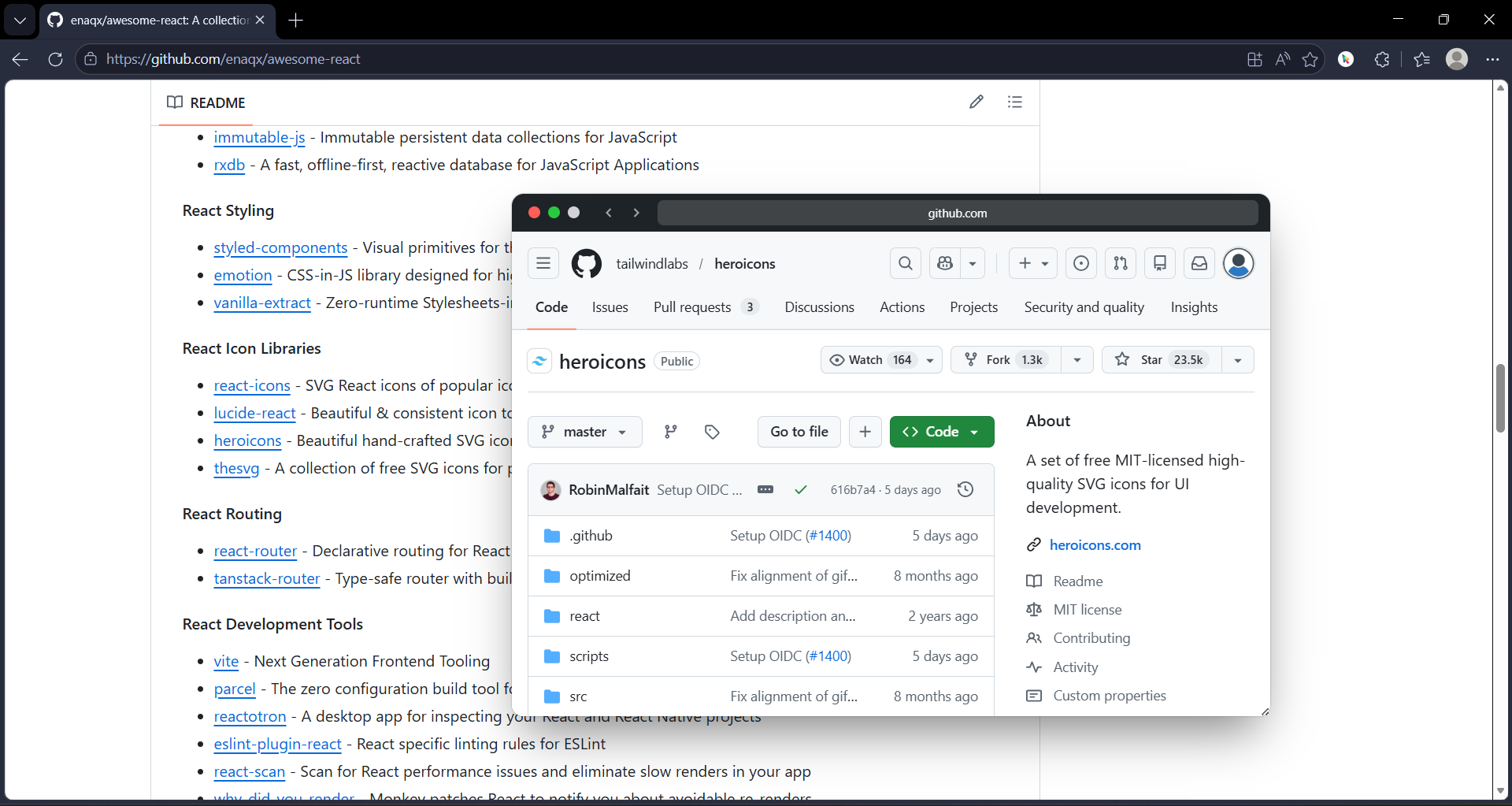
Power users do not browse the web. They interrogate it. They open twenty Hacker News threads, check three documentation pages, verify two GitHub issues, and cross-reference a Reddit post — all to answer one question. Normal browsers turn this into thirty tabs and a melted CPU. GoPeek turns it into hover-and-go. Your tab bar stays clean. Your RAM stays available. Your focus stays intact. On Edge, where vertical tabs already help, GoPeek completes the picture: you never need to open a tab for a "quick check" again.
Edge has built-in tracking prevention, but it is polite. It blocks some trackers, then lets the rest through to keep websites from breaking. uBlock Origin Lite is not polite. It blocks everything on the list by default, including the ad networks that slow down page loads by 40%. Power users do not wait for ads to load. They strip the page to its bones and read the content. On Edge, uBlock Lite pairs perfectly with the browser's native sleeping tabs — you get a lean, fast, quiet web with zero configuration.
This is the ultimate power user tool. Want to remove the YouTube sidebar? There is a script for that. Want to auto-fill your company login form? Write a script. Want to add a dark mode to a site that refuses to build one? Script. Want to download every image on a page with one keystroke? Script. Tampermonkey turns the web from something you consume into something you control. If you only install one "hacking" extension, make it this one.
Edge has a dark theme for the browser UI. That is nice. It does nothing for the blinding white background of Google Search, Wikipedia, or most documentation sites. Dark Reader fixes the actual web pages. It is especially critical for power users who stare at documentation, dashboards, and text-heavy sites for hours. Your eyes will thank you at 2 AM when you are debugging a production issue and the error logs are not searing your retinas.
Edge has sleeping tabs. That helps. But sleeping tabs still exist in your tab bar, cluttering your mental map. OneTab is the nuclear option. You finish a research session, click the OneTab icon, and twenty tabs become one clean list. Your RAM drops instantly. Your tab bar breathes again. You can name the list, export it, or restore it tomorrow. It is the difference between organizing your chaos and eliminating it.
Power users watch tutorials, conference talks, and documentation videos at 2x speed minimum. Clicking through YouTube's limited speed options is insulting. Video Speed Controller puts speed control on your keyboard. Watching a slow explainer? Tap D five times. At 2.5x, a 20-minute video becomes 8 minutes. Over a week of learning, that saves hours. It is the most underrated productivity extension because it does not feel like work — it just gives you time back.
The mouse is a bottleneck. Moving your hand from keyboard to mouse to click a link takes 1.5 seconds and breaks your flow. Vimium eliminates it. Press f, every link gets a letter code, type the letters, and you are there. It is not just for Vim users — it is for anyone who types for a living. Writers, developers, analysts: if your hands are already on the keyboard, Vimium keeps them there. On Edge, where keyboard shortcuts are already solid, Vimium makes the entire web keyboard-navigable.
The Power User Stack: How They Work Together
These seven extensions are not random picks. They are a stack. Each one handles a different layer of browser friction, and together they turn Edge into something that feels custom-built.
The Edge Power User Stack
Edge With vs. Without the Stack
| Task | Stock Edge | With the Stack |
|---|---|---|
| Check a link | New tab → load → read → close → tab bar chaos | Shift + hover → preview → close → zero tabs |
| Load a news article | Wait for ads, trackers, popups → 8-second load | uBlock strips it → 2-second load → clean page |
| Fix a broken website UI | Live with it or stop using the site | Tampermonkey script → problem solved |
| Read at night | Bright white screen → eye strain → headache | Dark Reader → comfortable dark mode → keep reading |
| Finish research session | 25 tabs open → close one by one → lose references | OneTab → single list → restore what you need later |
| Watch a tutorial | 1x speed → 30-minute video → bored and distracted | 2.5x speed → 12-minute video → done, moving on |
| Click a link | Hand to mouse → aim → click → hand back to keyboard | Press f → type hint → never leave keyboard |
Which Extension to Install First
If you are building your Edge setup from scratch, install in this order based on your biggest pain point:
If you drown in tabs → GoPeek first
This is the foundation. Every other extension optimizes a specific task. GoPeek optimizes the meta-task: accessing information without creating permanent browser objects. Install this first and everything else feels lighter.
If the web feels slow and bloated → uBlock Origin Lite first
Strip the ads and trackers. You will be shocked how fast the same sites feel. This alone makes Edge feel like a premium browser.
If you live in Google Docs, GitHub, and dashboards → Vimium first
Keyboard navigation changes everything. Once you stop reaching for the mouse, you will wonder why you ever put up with it.
If you watch videos to learn → Video Speed Controller first
It is the fastest ROI of any extension on this list. A 2x speed habit saves you an hour per day if you watch more than two hours of video content.
Why Edge Specifically?
You might be wondering: why Edge? Why not Chrome or Firefox? Here is the truth. Edge is Chromium, so it runs the same extensions as Chrome. But it is better at resource management than Chrome. Sleeping tabs, startup boost, and efficiency mode are native — not extensions. The vertical tabs sidebar is genuinely useful for power users who keep 10+ tabs open. And Edge's built-in sidebar (Bing, Outlook, etc.) can be replaced with actual productivity tools if you use the right extensions.
The catch is that Edge's own extension store is cluttered with junk. Half the "recommended" extensions are adware in disguise. The seven on this list are vetted, open-source where possible, and do not sell your data. They are the tools power users actually rely on — not the tools that pay Microsoft for placement.
The Bottom Line
Microsoft Edge is already a good browser. With the right extensions, it is a great one — faster, cleaner, more keyboard-driven, and less cluttered than Chrome out of the box. The seven extensions above handle the seven biggest friction points in modern browsing: tab overload, ad bloat, rigid website design, eye strain, session management, slow video learning, and mouse dependency.
You do not need fifty extensions. You need seven that work. Install them, sync them across your devices, and stop fighting your browser. The web is already chaotic enough.